Add App Configuration - Admin
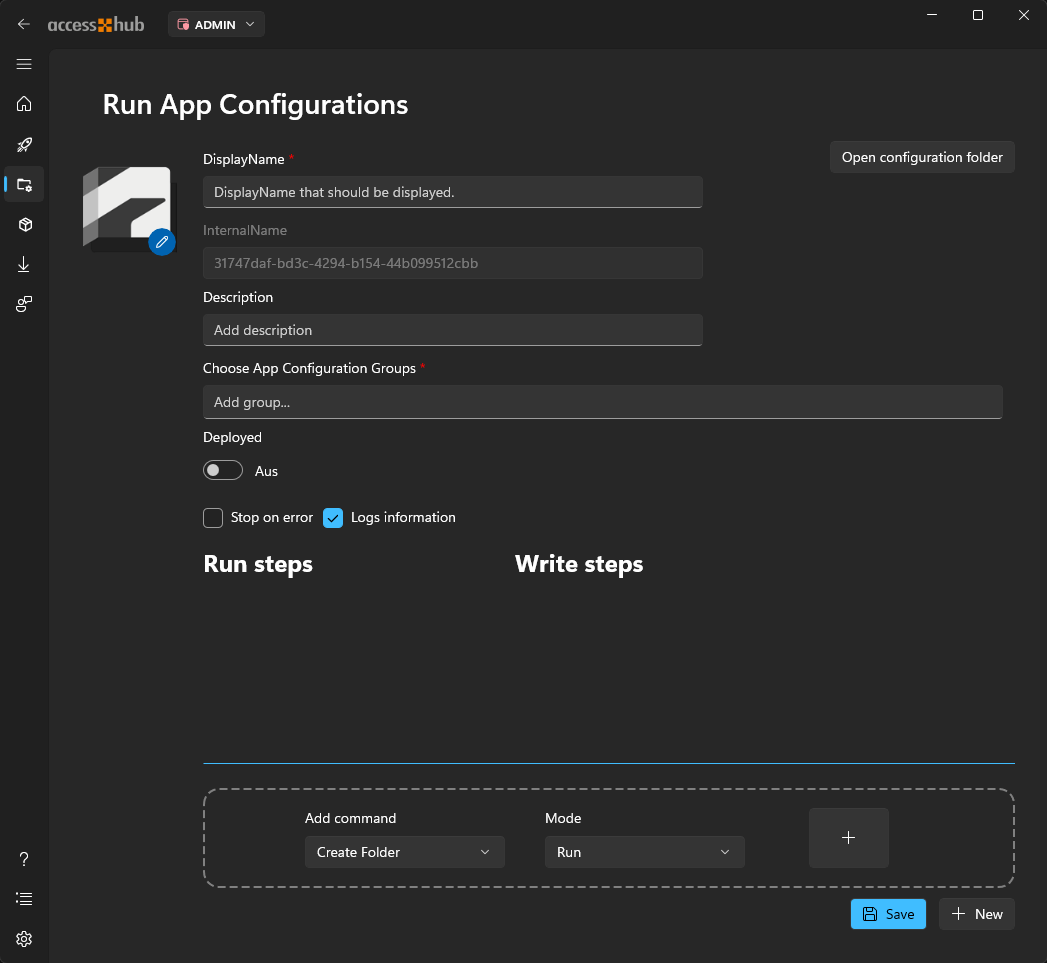
Via Add App Configuration, new configurations can be created for various needs. It provides the option to define not only a Run Step but also a Write Step to save the configuration data.
Icon
Click on the icon to replace it with predefined icons.
Display Name
Add a Display Name. This name will show in the App Configurations.
Internal Name
The internal name is assigned randomly and cannot be modified. This ensures uniqueness.
Description
The description is also displayed in the App Configurations and may contain information about the software.
Configuration Groups
One or more groups can be added here to which the configuration should belong. The configuration then appears in every selected group.
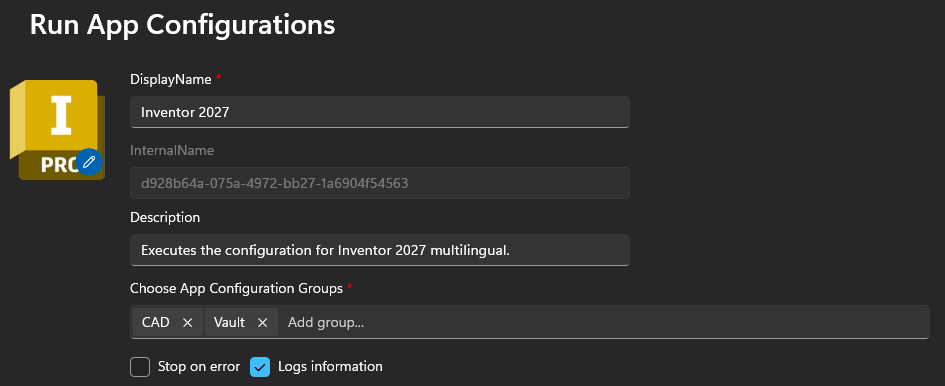
When a configuration belongs to more than one group, it is marked with a badge in the group view. See Run configuration group for details on the badge and on moving or linking configurations between groups.
Additional options
Additionally, it can be defined whether the configuration should stop in case of an error or if the log information should be included.
Deployed
If Deployed is turned on, the configuration is deployed to the users and the Publish button appears next to the switch. Users who have already run the configuration are then offered every newly published version as an update. See Publish App Configuration for details.
Add command
In the Add command, various functions can be added to the configuration.